

As an Amazon Associate I earn from qualifying purchases.
Knowing how to set up Echo Dot takes the guesswork out of the first ten minutes with a new speaker. You need the Alexa app on your phone, your Wi-Fi password and an outlet. The app does most of the work, and Amazon’s own setup path is only eight steps long.
Below are those steps exactly as Amazon’s help page lists them today, plus what to have ready, where to put the Dot so it hears you, the first things to say, and what to do if setup stalls. The same steps cover the Echo Dot with clock.
What you’ll need before you start
Gather these first. Most setup problems come from a missing password or an out-of-date app, not from the Dot itself.
Still deciding between models? Our guide to which Echo to buy compares the Dot with the Dot Max, Spot and Show. If you want a screen for recipes, see our picks for the best smart display for the kitchen.
How to set up Echo Dot in the Alexa app
These are the steps from Amazon’s Set Up Your Echo Dot help page, checked on October 31, 2026. Menu names are Amazon’s, word for word.
That last step is where the app connects the Dot to your home network and your account. In general, expect it to ask you to confirm the Dot is ready, choose your Wi-Fi network and enter the password. It may also ask for a location or a room name. The exact screens can change with app updates, so go by what your app shows.

Where to put your Echo Dot
Placement decides how well the Dot hears you and how good it sounds. A few minutes of thought saves a lot of repeated commands.
- Give it some space. A spot a little away from walls and corners helps the microphones hear you from across the room.
- Keep it away from noise. A running dishwasher, range hood or TV speaker right next to the Dot drowns out your voice.
- Think about Wi-Fi. A shelf that gets a strong signal beats a hidden corner behind a metal cabinet.
- Raise it a little. Counter or shelf height usually works better than the floor.
- Bedroom? A nightstand is ideal. Tapping the top snoozes your alarm, and the Echo Dot with clock shows the time.
If outlets are scarce, a wall mount or other Echo Dot accessory can lift it off the counter. For bigger sound, our guide to the best speaker for Echo Dot covers pairing it with a better speaker.
First things to try after setup
Once setup finishes, say the wake word, then your request. These are good first tests that show the Dot is working:
- “Alexa, what’s the weather today?”
- “Alexa, set a timer for 10 minutes.”
- “Alexa, play some jazz.” (link a music service in the app first for more choice)
- “Alexa, set an alarm for 7 a.m.”
- “Alexa, add milk to my shopping list.”
For dozens more, see our list of the best Amazon Alexa commands. Setting up a Dot for a parent or grandparent? Our Alexa for seniors guide covers reminders, calling and simple routines.
Make your first routine
A routine runs several actions from one trigger. Amazon’s routine help page gives this path: open the Alexa app, select More, then Routines, then the plus icon. Select Add an event to choose what starts it, Add an action to choose what happens (you can add several), then Save.
The current Echo Dot has built-in motion and indoor temperature sensors, so a routine can start when you walk in or when a room gets warm, if your smart home devices support it.
Put the Dot in a room group
Groups let you say “turn on the lights” and have Alexa control the right room. Per Amazon’s smart home groups help page: open Devices, select Plus, then Add Group, and choose Create a room or device group. Pick a preset name or your own, select Next, choose the devices, then Save. An Echo can only be in one smart home group.
If setup doesn’t work
Most stalls are network problems. Start with the simple fixes before anything drastic.
- Check the password. Wi-Fi passwords are case sensitive, so retype it slowly.
- Restart the basics. Unplug the Dot for a few seconds, plug it back in, and close and reopen the Alexa app.
- Update the app. An outdated app is a common cause of a device that won’t appear.
- Move closer to the router to test, then move the Dot back once it works.
- Use Amazon’s help topics. On the Echo Dot help page, see Set Up Doesn’t Work on Your Echo Device and Echo Device Is Having Wi-Fi Issues.
Bought the Dot used, or moving it to a new account? It may still be registered to the old owner. Our guide on how to reset Alexa covers starting fresh.
If you have an eero mesh network, the Dot can join it too. Amazon’s help page lists Connect Your Echo Device to Your eero Network as a related topic, and the current Dot can extend eero Wi-Fi coverage.
Gear that helps
If you’re still shopping or want a second one for another room, this is the model these steps were written for.
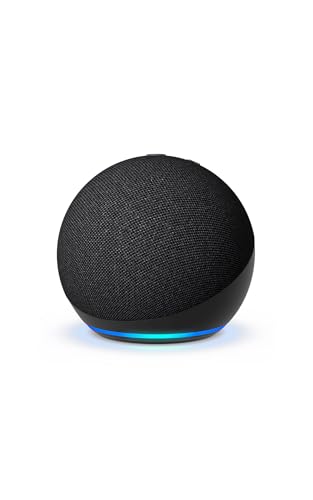
Amazon Echo Dot
A small, simple Alexa speaker for bedrooms, offices and dining rooms
The current Echo Dot adds motion and temperature sensors for routines, tap-to-snooze alarms, and eero Built-in to extend a compatible eero mesh network.
Short on counter or shelf space? A Made For Amazon wall mount holds the Dot on the wall and keeps the cord tidy.
Frequently asked questions
Do I need the Alexa app to set up an Echo Dot?
Yes. Amazon’s setup steps run through the Alexa app on a phone or tablet: Devices, the plus icon, Add Device, Amazon Echo, then Echo, Echo Dot, Echo Pop and more. Download or update the app before you plug the Dot in so setup goes smoothly.
Why can't my Echo Dot connect to Wi-Fi?
The most common causes are a mistyped password, an out-of-date Alexa app, or a weak signal where the Dot sits. Retype the password, update the app, and try closer to the router. Amazon’s help topic Echo Device Is Having Wi-Fi Issues covers more fixes.
Can I set up an Echo Dot without a smartphone?
Amazon’s current Echo Dot setup steps use the Alexa app on a mobile device. If you don’t own one, borrow a family member’s phone or tablet signed in to your Amazon account for the few minutes setup takes.
How do I set up a second Echo Dot?
Repeat the same steps in the Alexa app for each Dot. Give each one a clear room name, then add it to a room group so commands like turn on the lights control the right room. An Echo can be in only one smart home group.